Hospital Inpatient Query Results
Note: The results shown are posted as reported and certified by health care facilities to the Agency for Health Care Administration(AHCA), Florida Center for Health Information and Transparency; therefore, charges and length of stay (LOS) are not adjusted for patient's severity of illness among facilities.
The data is effective as of .
It can be downloaded in comma-separated text (CSV), or other Excel-compatible formats. (For best results use Chrome, Firefox, or Edge browsers.)
Please contact us for further assistance, and/or for more information see the Data Disclaimer or Data Layout/Dictionary.
How To Use This Tool
Select a Data Source
Use the tabs at the top to choose between Inpatient, Outpatient, or Emergency Department results.
View By
Select how you want data grouped — by hospital, county, gender, payer, etc.
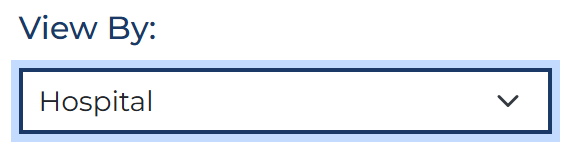
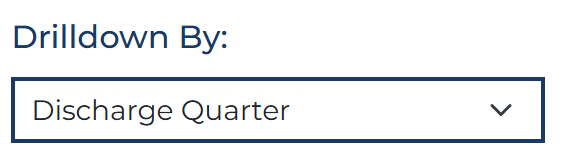
Drilldown By
Choose a secondary dimension. Clicking a row in the table will drill into that value, switching your View By to the Drilldown selection and adding a filter to the selected item automatically.
Toolbar Buttons

Filter Options
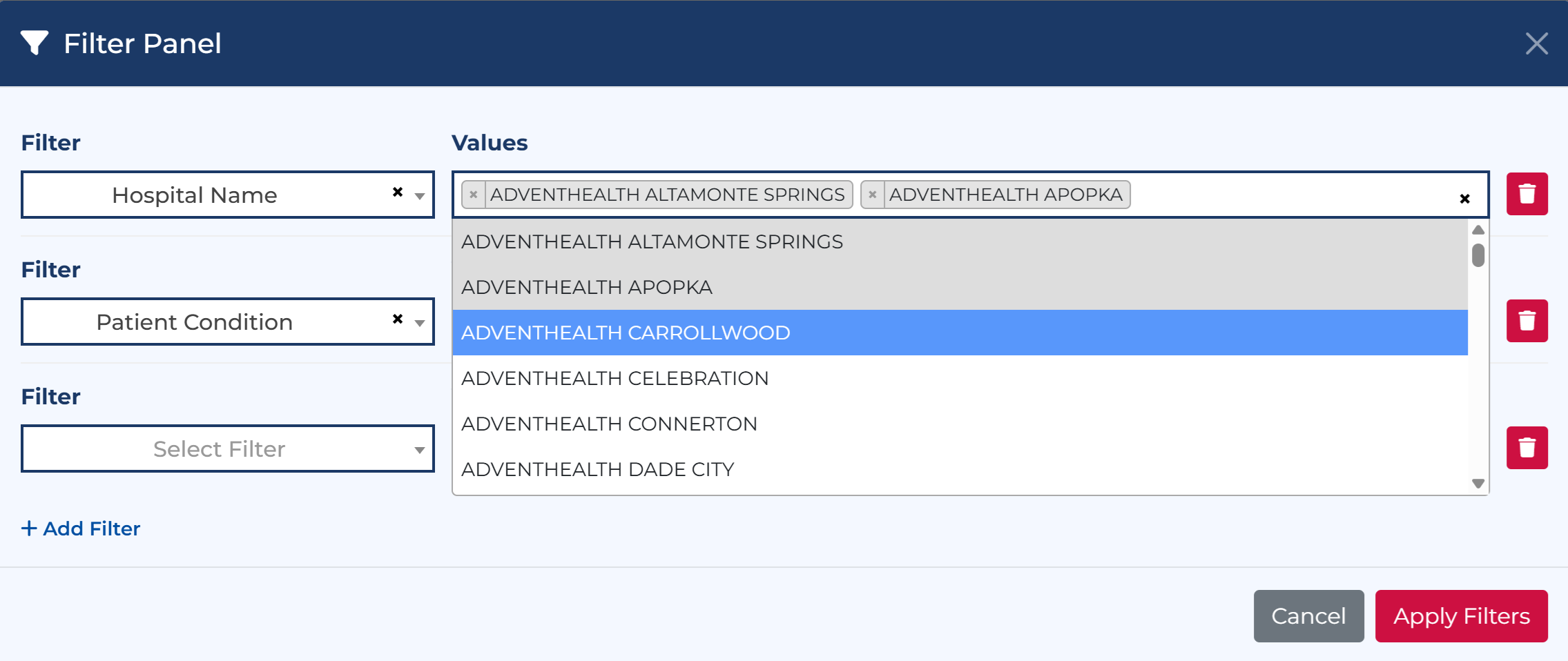
Click Filter Options to open the filter panel. Add multiple filters, select values, and click Apply Filters. Active filters appear as tags below the controls.
Reset
Click Reset to clear all filters, drill history, and return to the default view.
Share
Click Share to copy a link that preserves your current view, filters, drilldown, and chart settings. Send it to a colleague to reproduce your exact view.
Drilldown
Choose a secondary dimension.

Clicking a row in the table will drill into that value.
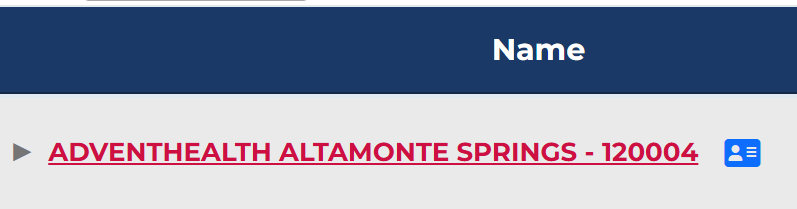
This switches your View By to the Drilldown selection, displays a breadcrumb, and adds a filter to the selected item automatically.
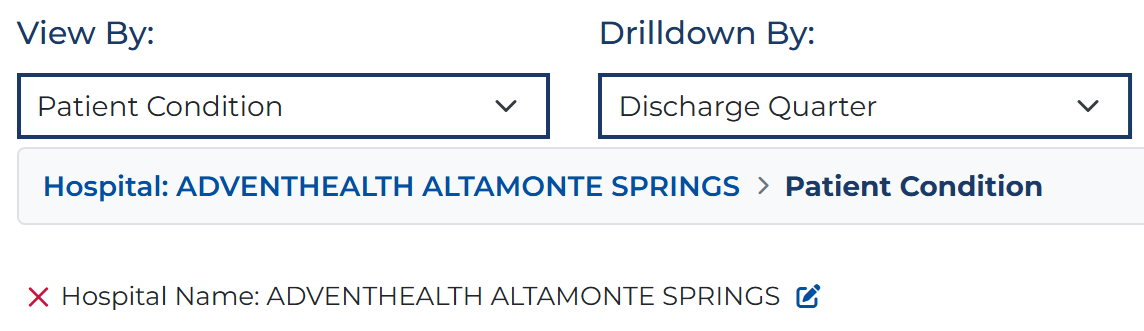
This can be repeated for a deeper drilldown.

Click any prior item in the breadcrumb trail to return to a prior view, removing filters added from that point on.

Filter
Filters can be added by drilldown actions or by using the filter tool. The "Filter Options" button will show a count of filters when any are in use.

The filter panel can also be reached from filter items by clicking the edit icon or removed by clicking

From the filter panel filters can be added, removed, or modified. All filters support multiple selections.
Data Table
The table displays all results for your current view and filters. Use the length menu to show 25, 50, 100, 150, or All rows.
Drilldown
When a Drilldown By field is selected, click a row in the table to drill into that item. The breadcrumb trail above the table lets you navigate back.
Facility Type View
For Facility Name and Hospital Name views, click the name link to drill down or the icon to preview the facility profile.
Table Footer
The footer row shows totals or averages for each column.

Export Options
Click the Export button above the table to download data as Excel, CSV, PDF, or send to print. Exports include your current view description and active filters.
